Good placement of the Gateway is very important for correct system functionality. Try to position the gateway as close to the products as possible. Do not place the Gateway in an enclosed area such as a closet, cabinet, attic, office or garage if the Parklio products which are meant to be controlled by Gateway are positioned outside of the mentioned places.
Keep the number of obstacles of the Parklio Gateway and other Parklio devices to a minimum - each wall or ceiling can reduce the Gateway range 1 to 30 metres (3 to 90 feet). Position the devices so that the connection between Parklio Gateway and other Parklio devices is handled without problem.
There are two options for mounting the gateway:
Wall mounting
Pole mounting
Wall mount
To mount the gateway to a wall please follow the steps below.
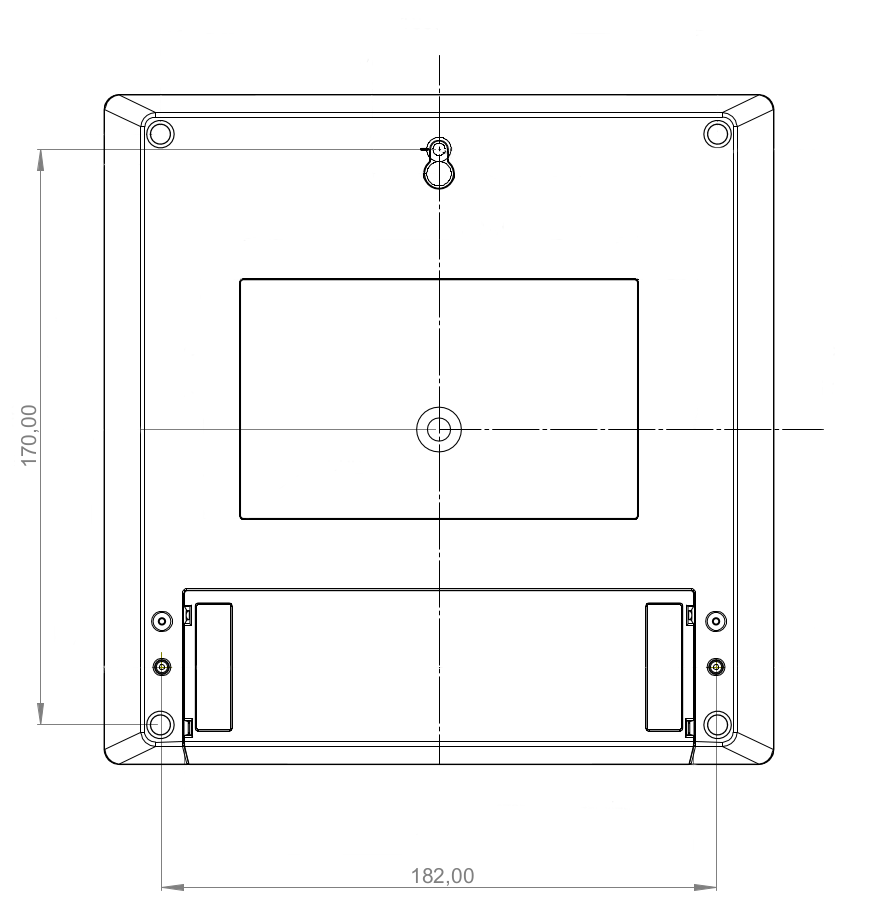
Dimensions for the wall mount
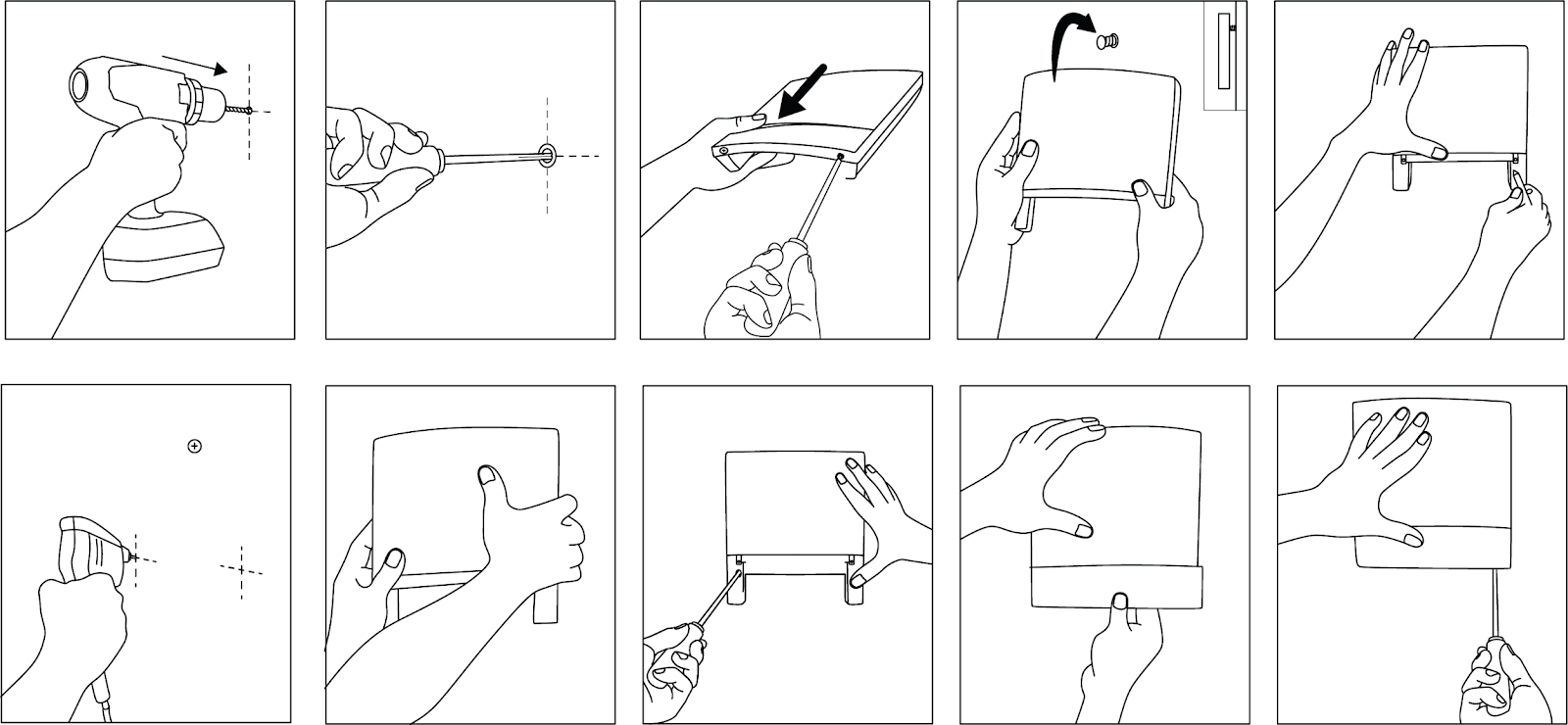
| Step 1 Drill the top centre hole. Use an electric drill with a 6mm masonry bit to drill the hole at the desired spot.
NOTE: The drill bit size may vary depending on the type of wall plug used. |
| Step 2
Place the 6mm wall plug into the drilled hole, screw the screw into the plug. Leave the screw head out by 5 mm, because the Gateway needs to be hung over it.
NOTE: Make sure to use wall plugs intended for the type of wall or surface the Gateway is being installed on. you are installing the gateway on. |
| Step 3
Unscrew the bottom cover of the Parklio Gateway and remove it. |
| Step 4
Hang the Parklio™ Gateway onto the mounted bolt. |
| Step 5
Mark the two holes initially positioned under the removed cover. |
| Step 6
Remove the Gateway and drill the previously marked holes. Place the wall plugs into the drilled holes. |
| Step 7
Hang the Gateway back onto the first screw. |
| Step 8
Tighten the screw into the wall plugs. |
| Step 9
Place the plastic cover back. |
| Step 10
Screw the bottom of the Parklio Gateway so that the plastic cover is fixed. |
NOTE: The wall plugs and screws are not provided.